Master Netflix: Set Up, Stream, and Curate Like a Pro
Setting up your Netflix account is the first step to accessing content as fresh and stylish as a Paris Fashion Week runway. For Millennial and Gen Z women, a secure account means you’re free to stream trending series, explore beauty tutorials, and enjoy pop culture from Seoul to New York—without worrying about account security. Netflix’s simple sign-up process and emphasis on a strong, unique password give you confidence to start curating a viewing experience unique to your vibe.
Table of Contents
- Step 1: Create Your Netflix Account Securely
- Step 2: Customize Your Profile and Preferences
- Step 3: Search and Discover Trending Content
- Step 4: Curate the Ultimate Personal Watchlist
- Step 5: Verify Streaming Quality and Device Compatibility
Quick Summary
| Key Point | Explanation |
|---|---|
| 1. Secure Your Account | Create a unique password and avoid reusing it across different sites to protect your account from unauthorized access. |
| 2. Customize Profiles for Everyone | Set up individual profiles to provide tailored recommendations for each household member, enhancing the viewing experience. |
| 3. Use Discovery Tools Effectively | Explore Netflix’s homepage and personalized suggestions to quickly find trending shows that match your interests. |
| 4. Maintain an Organized Watchlist | Regularly update your watchlist with titles that genuinely excite you to streamline your viewing experience. |
| 5. Check Streaming Quality Settings | Verify your subscription plan details and device capabilities to ensure you enjoy the best streaming quality available. |
Step 1: Create Your Netflix Account Securely
Setting up your Netflix account is the first move toward unlocking a world of shows and movies tailored just for you. This process takes less than five minutes, and Netflix has made it intentionally straightforward so you can start streaming without friction. The key here is doing it right from the beginning by prioritizing security, which honestly saves you headaches down the road.
Head to Netflix.com and click the “Sign Up” button. You’ll be asked to choose a subscription plan that fits your lifestyle, whether that’s their entry-level option or their premium tier with all the bells and whistles. Next comes the part that matters most for keeping your account safe: creating your login credentials. Enter an email address you check regularly, then craft a strong password that’s completely unique to Netflix. Here’s the critical part that Netflix emphasizes repeatedly: don’t reuse a password from your email, social media, banking app, or anywhere else. Seriously. Your Netflix password should be different from every other password you use online. Think of it like having different keys for different doors instead of one master key that unlocks everything. This strong, unique password approach is your first line of defense against unauthorized access to your account.
After you’ve locked in your email and password, you’ll connect a payment method. Netflix accepts credit cards, debit cards, and various digital payment platforms depending on your location. You can also add a phone number if you want extra security options later. Once your payment information is saved, you’re essentially done with account creation. Netflix then takes you through profile setup, where you can personalize your watchlist and preferences. What’s smart about Netflix’s system is that your account can be accessed on multiple devices simultaneously, so you’re not locked into watching on just your phone or TV. You can seamlessly switch between your smartphone, laptop, tablet, and television without any complications.
One thing worth noting: Netflix will never ask you to confirm your password, email, or payment details through random text messages or emails. If you receive a message claiming to be from Netflix asking for account information, that’s a phishing attempt. Delete it immediately. Your account security depends on you being the only person who knows your login details. You maintain complete control over who can access your account, and you can change your password anytime if something feels off.
Pro tip: Save your Netflix password in a secure password manager like Bitwarden or 1Password rather than writing it down or using the same password everywhere, which gives you strong security without the stress of remembering yet another complex string of characters.
Step 2: Customize Your Profile and Preferences
Now that your Netflix account is locked down, it’s time to make it feel like yours. This is where the magic happens because Netflix becomes infinitely more enjoyable when it’s tailored to you and the other people in your household. Whether you live alone or share your account with family and roommates, customizing profiles ensures everyone gets recommendations they actually want to watch instead of that weird mix of everything everyone has clicked on.
Start by accessing your account settings on any device where you’re logged in. You can have up to 5 individual profiles per account, and this is game changing if you share your subscription. Each profile can have its own name, avatar image, language preference, and most importantly, its own viewing history and recommendations. Think of profiles as separate personas within one Netflix account. Your mom’s profile doesn’t need to be plagued with your true crime documentary binges, and you don’t need to wade through kids’ shows to find what you want to watch. Creating multiple profiles takes seconds. Click on your profile icon, select “Manage profiles,” then click “Add profile.” Give it a name, choose an avatar image from Netflix’s collection or upload your own, and you’re done. You can edit, delete, or rearrange profiles whenever you want without any friction.
Once you’ve set up your profiles, dive into the personalization that makes Netflix feel personally curated. You can adjust maturity levels for each profile, which is essential if kids use the account. Netflix lets you restrict content based on ratings, so you maintain complete control over what appears in each profile. Language preferences are equally customizable. If you’re bilingual or want to practice a new language, you can set your profile to display Netflix’s interface and recommend shows in Spanish, French, Mandarin, or dozens of other languages. The real power comes from understanding that customizable profile settings give each household member a genuinely personalized experience, not just a shared subscription that benefits no one equally.

Take a moment to explore your playback settings too. You can control video quality preferences, autoplay behavior, and whether Netflix remembers where you left off in a series. Some people love autoplay advancing to the next episode while they’re half asleep; others find it infuriating. You get to decide. You can also add email addresses to secondary adult profiles if you want Netflix to send personalized recommendations and account notifications to specific people. This is particularly useful if you’re sharing an account with a partner or close friend who deserves their own viewing experience. The beauty of all this customization is that it happens once and then works invisibly in the background, constantly learning your preferences and getting smarter about what to recommend.
Summary of common Netflix profile customization settings:
| Customization Option | What It Controls | Why It Matters |
|---|---|---|
| Language Preference | Display and recommendations language | Better accessibility, discovery |
| Maturity Levels | Allowed rating/content | Safe viewing for children |
| Autoplay Settings | Next episode auto-advance | Control binge-watching pace |
| Profile Picture | Avatar image per profile | Easy personalization |
Pro tip: Create a profile specifically for trying new content or genres outside your usual preferences, keeping your main profile recommendations focused on what you actually want to see, so you can experiment without polluting your algorithm with random one-off shows.
Step 3: Search and Discover Trending Content
Finding your next obsession on Netflix should feel effortless, not like scrolling endlessly through an overwhelming catalog. The good news is that Netflix has actually gotten really smart about helping you discover what’s worth your time. Whether you’re hunting for the latest cultural phenomenon or want to stumble onto something completely unexpected, the platform offers multiple ways to find content that matches your mood and interests. This step is about mastering those discovery tools so you spend less time deciding and more time actually watching.
Start with Netflix’s homepage, which is personalized specifically for you based on your viewing history and profile preferences. The top section usually features what’s trending right now, showcasing shows and movies that other viewers are buzzing about. You’ll see categories like “Top 10 in Your Country,” “Trending Now,” and genre-specific rows like “Feel-Good TV Comedies” or “Intense Thrillers.” These aren’t random. Netflix uses data-driven algorithms to surface content that matches both global trends and your individual taste patterns. Below the homepage recommendations, you can scroll through curated collections. Netflix groups content by mood, genre, and time period, so you might find rows for “Binge-Worthy Series,” “Award-Winning Dramas,” or “International Stories.” Clicking on any of these rows expands to show more options within that category. The beauty here is that Netflix is doing the heavy lifting for you. You’re not searching through thousands of titles blindly; Netflix is already pre-filtered the noise and showing you what’s actually trending and worth watching.
If you want to get more intentional about discovery, use Netflix’s search function. Type in a genre, actor name, director, or even a vague mood like “feel-good” or “suspenseful.” Netflix will pull up related content and let you narrow results by release date, rating, or language. You can also browse by specific genres at the top menu if you want to explore comedy, drama, action, or documentary categories in depth. One particularly helpful feature is Netflix’s “My List,” which lets you bookmark titles you’re interested in without committing to watching them immediately. When you’re browsing and see something intriguing, click the plus icon to add it to your list. Later, when you can’t decide what to watch, your list becomes a quick reference of pre-approved options. Netflix also sends personalized notifications about trending releases and upcoming content, alerting you when new seasons of shows you’ve watched drop or when fresh movies arrive that match your interests. You can customize notification settings in your account preferences to control how often you hear from Netflix.
Another underrated discovery method is checking out what other profiles in your household are watching. Sometimes your roommate or partner finds something genuinely incredible that ends up becoming your new favorite show. Netflix makes this easy by showing activity across your account, and browsing what’s trending in different profiles often leads to pleasant surprises. You can also explore Netflix’s official Tudum website, where they publish articles about upcoming releases, behind-the-scenes content, and curated recommendations from Netflix experts. This is helpful when you want discovery guided by actual entertainment journalists rather than just algorithms. The key to maximizing Netflix discovery is understanding that the platform is actively working to show you content you’ll love. Your job is simply to engage with these tools instead of overwhelmed scrolling.
Pro tip: Start a “Watch With Friends” list separate from your personal list, and when someone recommends a show or movie, add it immediately instead of trying to remember it later, so you have a ready-made queue of vetted recommendations for when you genuinely need something to watch.
Step 4: Curate the Ultimate Personal Watchlist
Having a solid watchlist is honestly the difference between mindlessly scrolling Netflix for 45 minutes and actually starting something you’ll genuinely enjoy. Your watchlist becomes your personal entertainment roadmap, a curated collection of shows and movies that align with your mood, interests, and viewing style. Building it strategically means you’ll always have something ready to go, whether you’re in the mood for a quick comedy episode or a deep dive into an intense drama series. This is where you take control of your Netflix experience and stop letting the algorithm decide everything for you.
Start by using Netflix’s My List feature, which is your watchlist backbone. When you’re browsing and find something interesting, click the plus icon or “Add to My List” button. That’s it. The title gets bookmarked, and you can access it anytime from your profile. The genius of Netflix’s personal watchlist system is that it’s accessible across every device you use, so whether you discover something on your TV and want to watch it later on your phone, it’s already there waiting. Your list isn’t static either. Netflix orders your titles by relevance based on your viewing patterns and availability, so the shows most likely to appeal to you appear at the top. You can remove titles that no longer interest you, rearrange the order manually, or filter by different categories like shows versus movies. The beauty is total control without any complexity. Beyond just adding things randomly, start thinking strategically about what goes into your list. Consider your current mood and what you’re actually in the mood to commit to. Are you in a season where you want lightweight comedies you can half-watch while scrolling, or are you ready to get emotionally invested in a dense drama that demands your full attention? Add accordingly. Don’t fill your list with 200 titles. That defeats the purpose. A focused list of 30 to 50 titles that actually excite you is infinitely more useful than a bloated collection where you can’t find anything good.
Think about categorizing your watchlist mentally or even across different profiles if you really want to stay organized. You might mentally divide your list into categories like “Watch Tonight,” “Weekend Deep Dives,” “International Films,” or “Feel-Good Rewatches.” Some people create separate profiles specifically for organizing watchlists by mood or genre, so when they open Netflix, they can jump straight to the profile that matches their current vibe. This is particularly helpful if you share your account with other people and want to maintain your own curated experience separate from theirs. Regularly audit your list too. Every few weeks, scroll through and remove titles you’ve changed your mind about. If you added something on impulse and it no longer appeals to you, delete it. Your list should feel like a genuine reflection of what you want to watch right now, not a graveyard of half-hearted decisions. When you add a show you’re actively watching, keep it visible in your list so you can quickly resume where you left off. Once you finish it, remove it so your list stays fresh and relevant.
Consider adding titles right after you discover recommendations from friends, articles, or social media instead of trying to remember them later. The moment someone texts you about an amazing show or you see a show trending on TikTok, open Netflix and add it immediately. This way, your list becomes a collection of vetted recommendations you actually want to explore, not random titles you vaguely remember hearing about once. Your watchlist should also flex with the seasons. If it’s winter and you want cozy comfort shows, make sure your list reflects that. When summer rolls around and you want lighter fare, refresh accordingly. The goal is for your watchlist to be a living, breathing collection that grows and changes with you, not a static museum of old decisions.
Pro tip: When you finish watching a show or movie, immediately add the next thing you want to watch to your list so you never waste time deciding what comes next, and you maintain momentum in your viewing instead of losing interest during the browsing phase.
Step 5: Verify Streaming Quality and Device Compatibility
Nothing kills the Netflix experience faster than pressing play only to discover you’re watching in blurry standard definition on a device that could totally handle 4K. Before you settle in for a binge session, it’s worth taking a few minutes to understand what streaming quality your subscription plan actually supports and whether your devices can deliver that quality. This step ensures you’re getting the premium experience you’re paying for instead of settling for less without realizing it. Getting this right means crystal clear picture quality, vibrant colors, and smooth playback across all your devices.
First, check what your Netflix subscription plan actually includes. Netflix offers different tiers, and each has different maximum streaming resolutions. Your basic plan might max out at standard definition, while your standard plan supports HD, and premium plans unlock 4K Ultra HD and HDR. You can find this information in your account settings under “Plan Details.” Here’s the thing though: just because your plan supports 4K doesn’t automatically mean every title streams in 4K. Netflix labels each show and movie with its available quality options, so when you’re on a title’s detail page, you’ll see a badge indicating “HD,” “Ultra HD,” or “HDR” if those options are available. Not every title has been filmed or released in 4K yet, so understanding video quality labels for Netflix titles helps you know exactly what you’re getting before you hit play. If you’ve got a premium subscription and the title you want only offers HD, that’s Netflix’s catalog limitation, not your plan’s fault.
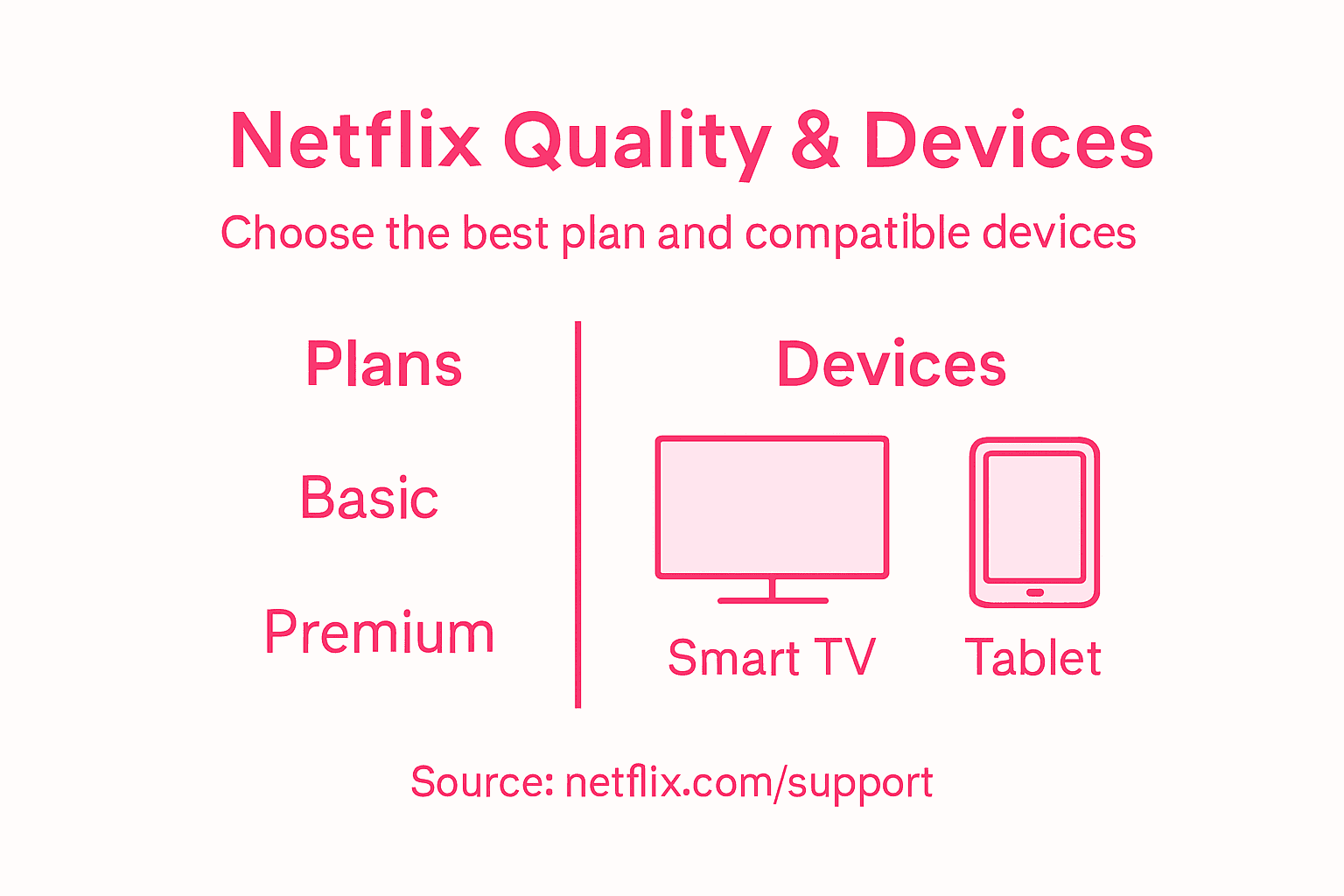
Here’s a quick guide to Netflix subscription plans and their streaming quality options:
| Plan Type | Max Video Quality | Number of Devices | Available Features |
|---|---|---|---|
| Basic | Standard Definition | 1 | Mobile download, no HD/4K |
| Standard | High Definition | 2 | HD streaming, downloads |
| Premium | 4K Ultra HD & HDR | 4 | Ultra HD, HDR, Dolby Atmos |
Next, verify that your device can actually handle the quality you’re trying to stream. Different devices have different capabilities. Your older laptop might only support HD streaming even if your Netflix plan includes 4K. Modern smart TVs, streaming devices like Roku or Apple TV, and current generation gaming consoles typically support 4K. Your smartphone probably supports HD or higher, depending on its screen size and refresh rate. Device and browser requirements vary significantly across platforms, so if you’re serious about getting the best quality, check Netflix’s official compatibility list to see what your specific device supports. Windows computers updated to Windows 10 or 11 with current browsers can stream Ultra HD. Macs vary depending on your operating system and browser, with Safari often providing better quality support than Chrome. Mobile devices need reasonably current operating systems to unlock higher quality streaming.
Your internet speed matters tremendously too. Netflix recommends at least 5 Mbps for HD quality and 15 Mbps or higher for 4K streaming. If you’re noticing constant buffering or quality drops, your internet might be the bottleneck. You can test your speed using free tools like Speedtest.net. If you’re consistently getting lower speeds than you’re paying for, contact your internet provider. Sometimes issues are as simple as moving your router closer to your streaming device or switching from WiFi to a wired connection if possible. Wired connections are significantly more stable than wireless, so if you’re having quality issues on a device that can support ethernet, try plugging in directly. If your internet is solid but you’re still experiencing quality problems, check Netflix’s troubleshooting suggestions for your specific device. Sometimes a simple restart of your router and device clears up streaming glitches instantly.
Also pay attention to your playback settings within Netflix itself. You can adjust your streaming quality preferences in your account settings to prioritize either higher quality or lower data usage. If you’re streaming over a cellular connection or have limited data, you might deliberately choose lower quality to conserve bandwidth. But if you’re on WiFi at home with solid internet speed, there’s no reason not to maximize quality. The beauty of understanding your setup is that you get to make informed choices about what matters to you instead of letting Netflix default to something mediocre.
Pro tip: Test your streaming quality on each device you regularly use to identify any weak points, and if one device consistently delivers poor quality while others work perfectly, that device might need troubleshooting or could be the limitation rather than your internet connection.
Elevate Your Netflix Experience with Lifestyle Inspiration from The Punk Rock Princess
Mastering Netflix setup and streaming quality is only the first step to creating a truly enjoyable entertainment routine. This article highlights how important it is to secure your account, personalize profiles, and build a curated watchlist that fits your mood and lifestyle. If you find yourself overwhelmed by endless scrolling or unsure about what to watch next, you are not alone. The key pain points are staying organized, protecting your account, and discovering content that really resonates with your tastes without wasting time.
At The Punk Rock Princess, we understand the joy of combining savvy entertainment habits with fashion, beauty, and lifestyle inspiration. Our blog offers fresh ideas to make your nights in just as exciting as nights out, with styling tips and pop culture updates that complement your streaming marathons. Whether you want comfort food recipes to savor while watching, or the latest entertainment news and personal storytelling that spark your mood, we have you covered. Dive into our entertainment section and explore curated content that matches your vibe perfectly.
Ready to transform your Netflix rituals into something exceptional through lifestyle inspiration and tailored advice Use the power of personalization not only on Netflix but also through expert tips at The Punk Rock Princess. Explore now and subscribe for daily updates that keep your entertainment fresh and your life stylish. Start creating your ultimate cozy night in today with The Punk Rock Princess.
Frequently Asked Questions
How do I create a secure Netflix account?
To create a secure Netflix account, visit Netflix.com and click the “Sign Up” button. Use a unique email and a strong password different from other accounts to enhance your security right from the start.
How can I customize my Netflix profile for better recommendations?
You can customize your Netflix profile by accessing your account settings and adding up to five individual profiles. Set unique preferences for each profile, such as language, maturity levels, and viewing history to enhance personalized content suggestions.
What are the steps to find trending content on Netflix?
Start by checking the Netflix homepage, which showcases trending shows and movies based on your viewing history. Use the search function to explore specific genres or themes to discover new content that matches your interests.
How can I build an effective watchlist on Netflix?
To build an effective watchlist, utilize the “My List” feature to bookmark titles that interest you. Regularly review your watchlist to ensure it reflects your current preferences and remove any titles that no longer excite you.
How do I verify my streaming quality and device compatibility?
Check your Netflix subscription plan to understand the maximum video quality it supports. Verify your devices’ specifications to ensure they can handle the streaming quality you desire, adjusting playback settings accordingly for the best experience.
What should I do if I experience poor streaming quality on Netflix?
If you experience poor streaming quality, start by testing your internet speed to ensure it meets Netflix’s recommended requirements. Additionally, try switching from WiFi to a wired connection to improve stability and performance.