Setting up your Netflix account is the first step to accessing content as fresh and stylish as a Paris Fashion Week runway. For Millennial and Gen Z women, a secure account means you’re free to stream trending series, explore beauty tutorials, and enjoy pop culture from Seoul to New York without worrying about account security. Netflix’s simple sign-up process and emphasis on a strong, unique password give you confidence to start curating a viewing experience unique to your vibe.
Step 1: Create Your Netflix Account Securely
Setting up your Netflix account takes less than five minutes and is designed to be simple and seamless. Visit Netflix.com, click “Sign Up,” and choose a plan that suits your needs. To keep your account secure, use an email you check regularly and create a strong, unique password just for Netflix.
Here’s the critical part that Netflix emphasised repeatedly: don’t reuse a password from your email, social media, banking app, or anywhere else. Seriously. Your Netflix password should be different from every other password you use online. Think of it like having different keys for different doors instead of one master key that unlocks everything. This strong, unique password approach is your first line of defence against unauthorised access to your account.
Step 2: Customize Your Profile and Preferences
Now that your Netflix account is set up, customising profiles helps make the experience truly personal, especially if you share an account. Netflix allows up to five profiles, each with its own name, avatar, language settings, viewing history, and recommendations. This keeps everyone’s tastes separate and your homepage clutter-free.
To create a profile, go to Manage Profiles, click Add Profile, choose a name and avatar, and you’re set. You can edit or delete profiles anytime. You can also adjust maturity ratings and language preferences for each profile, giving you full control over what content appears, especially for kids.
If you’re bilingual or want to practise a new language, you can set your profile to display Netflix’s interface and recommend shows in Spanish, French, Mandarin, or dozens of others. The real power comes from understanding that customisable profile settings give each household member a genuinely personalised experience, not just a shared subscription that benefits no one equally.
Check your playback settings to control video quality, autoplay, and whether Netflix remembers where you left off. You can also add email addresses to individual profiles for personalised recommendations and updates. Once set, these preferences run in the background and keep your Netflix experience tailored to you.
Summary of common Netflix profile customisation settings:
| Customization Option | What It Controls | Why It Matters |
|---|---|---|
| Language Preference | Display and recommendations language | Better accessibility, discovery |
| Maturity Levels | Allowed rating/content | Safe viewing for children |
| Autoplay Settings | Next episode auto-advance | Control binge-watching pace |
| Profile Picture | Avatar image per profile | Easy personalization |
Pro tip: Create a profile specifically for trying new content or genres outside your usual preferences, keeping your main profile recommendations focused on what you actually want to see, so you can experiment without polluting your algorithm with random one-off shows.
Step 3: Search and Discover Trending Content
Finding something great to watch on Netflix doesn’t have to feel like a chore. Netflix is built to help you discover content that matches your taste and mood, as long as you know where to look.
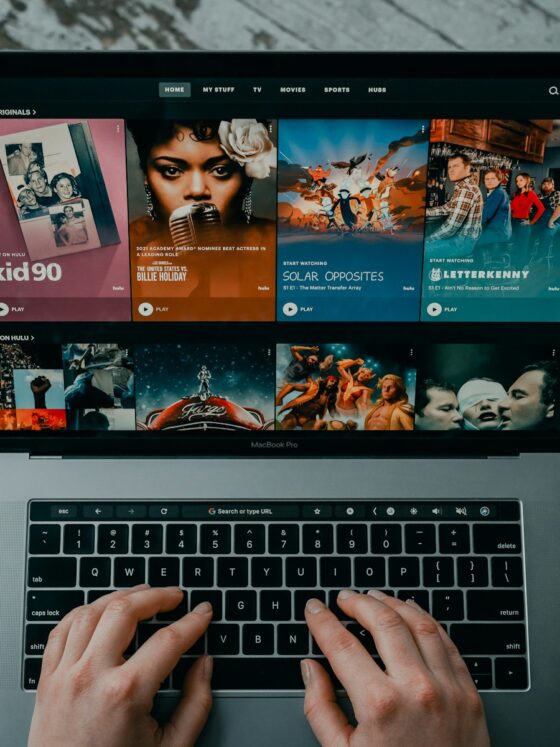
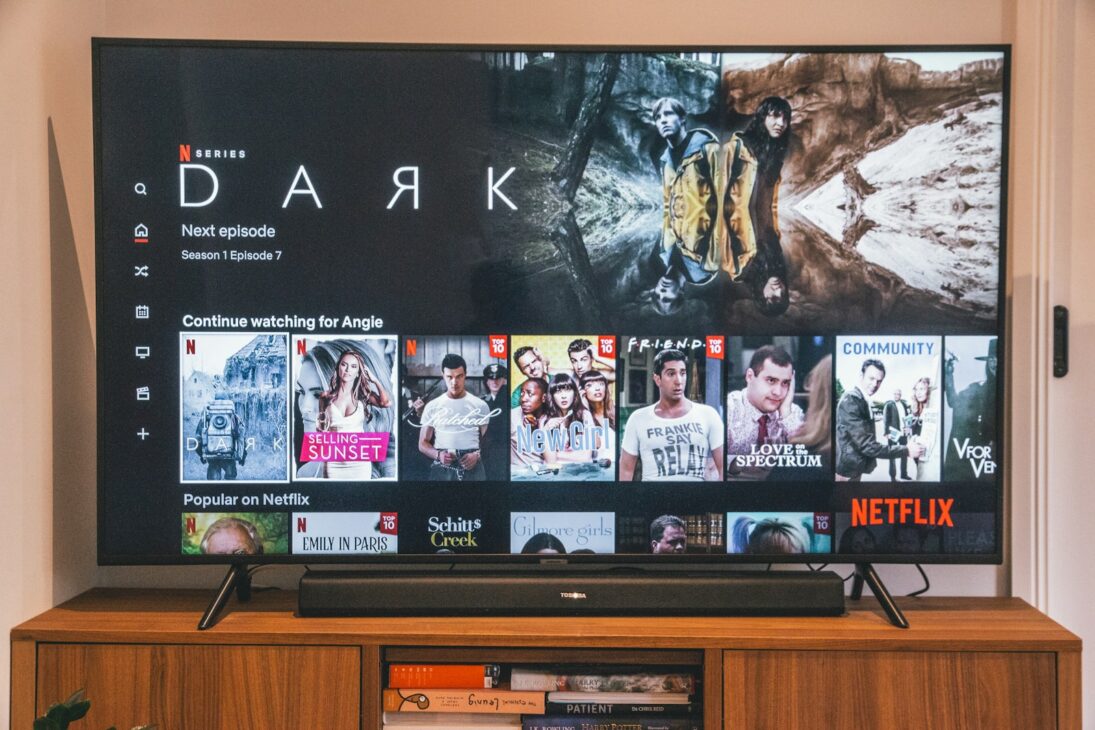
Start with the homepage, which is personalised based on your viewing history. Sections like Top 10 in Your Country, Trending Now, and genre-based rows highlight popular and relevant shows and films. These recommendations are driven by your past viewing, helping you spend less time scrolling and more time watching.
As you scroll, you’ll also find curated collections grouped by mood, genre, or theme, like Binge-Worthy Series, Award-Winning Dramas, or International Stories. These collections help cut through the noise by narrowing thousands of titles into focused, watchable options.
If you want to be more specific, use the search bar. You can search by genre, actor, director, or even a general vibe like “feel-good” or “suspenseful”. Netflix will then show related titles and let you explore deeper by category. The more intentionally you browse, the easier it becomes to find your next obsession.
One particularly helpful feature is Netflix’s “My List”, which lets you bookmark titles you’re interested in without committing to watching them immediately. When you’re browsing and see something intriguing, click the plus icon to add it to your list. Later, when you can’t decide what to watch, your list becomes a quick reference of pre-approved options. Netflix also sends personalised notifications about trending releases and upcoming content, alerting you when new seasons of shows you’ve watched drop or when fresh movies arrive that match your interests. You can customise notification settings in your account preferences to control how often you hear about Netflix.
Step 4: Curate the Ultimate Personal Watchlist
A solid watchlist is the difference between endless scrolling and actually watching something you’ll enjoy. Think of it as your personal entertainment roadmap, a curated list of shows and movies that match your mood and interests. By building your watchlist intentionally, you’ll always have something ready to go, whether you want a quick comedy or a full drama binge, without relying entirely on the algorithm.
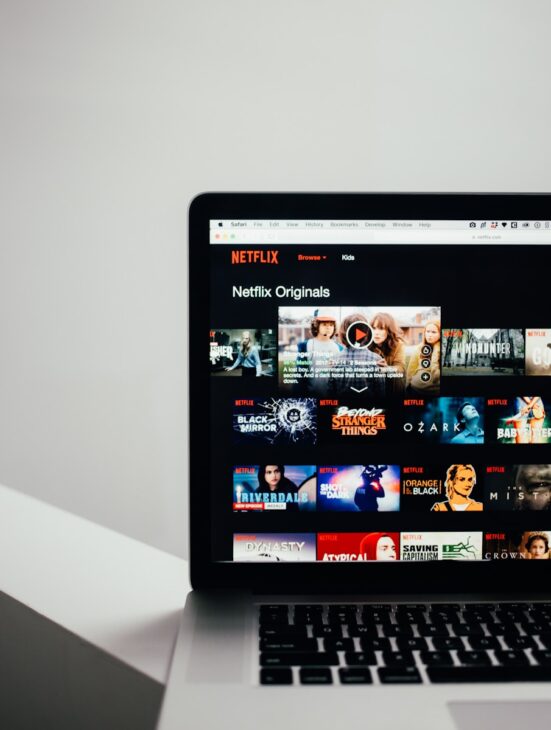
Start by using Netflix’s My List feature, which is your watchlist backbone. When you’re browsing and find something intriguing, click the plus icon or “Add to My List” button. That’s it. The title gets bookmarked, and you can access it anytime in your profile. The genius of Netflix’s personal watchlist system is that it’s accessible across every device you use, so whether you discover something on your TV and want to watch it later on your phone, it’s already there waiting. Your list isn’t static either.
Netflix may order your watchlist based on what it thinks you’ll like, but you’re still in control. Remove titles you’re no longer interested in, rearrange your list, and be intentional about what you add. Consider your mood and how much attention you want to give. Light comedies work well for background viewing, while heavier dramas are better saved for focused evenings.
Avoid overloading your watchlist. A curated list of around 30–50 titles you’re genuinely excited about is far more useful than hundreds you’ll never watch. Clean it up regularly by removing finished or no-longer-interesting titles, and add new recommendations as you discover them. The goal is a watchlist that reflects what you want to watch now, not a cluttered archive.
Step 5: Verify Streaming Quality and Device Compatibility
Nothing ruins a Netflix binge faster than realising you’re watching with a blurry standard definition when your device could handle 4K. Before settling in, it’s worth checking what streaming quality your subscription actually supports and whether your devices can deliver it. That way, you’re getting the premium experience you’re paying for: crisp visuals, rich colours, and smooth playback.
Start by checking your Netflix plan under Account > Plan Details. Different tiers support different resolutions, from standard definition to HD, 4K Ultra HD, and HDR. Just keep in mind that not every title streams in the highest quality. Netflix clearly labels each show or movie with badges like HD, Ultra HD, or HDR on the title page, so you’ll know exactly what quality is available before you press play.
Not every title has been filmed or released in 4K yet, so understanding video quality labels for Netflix titles helps you know exactly what you’re getting before you hit play. If you have a premium subscription and the title you wish to view is only available in HD, please note that this is due to Netflix’s catalogue limitations, not an issue with your plan.
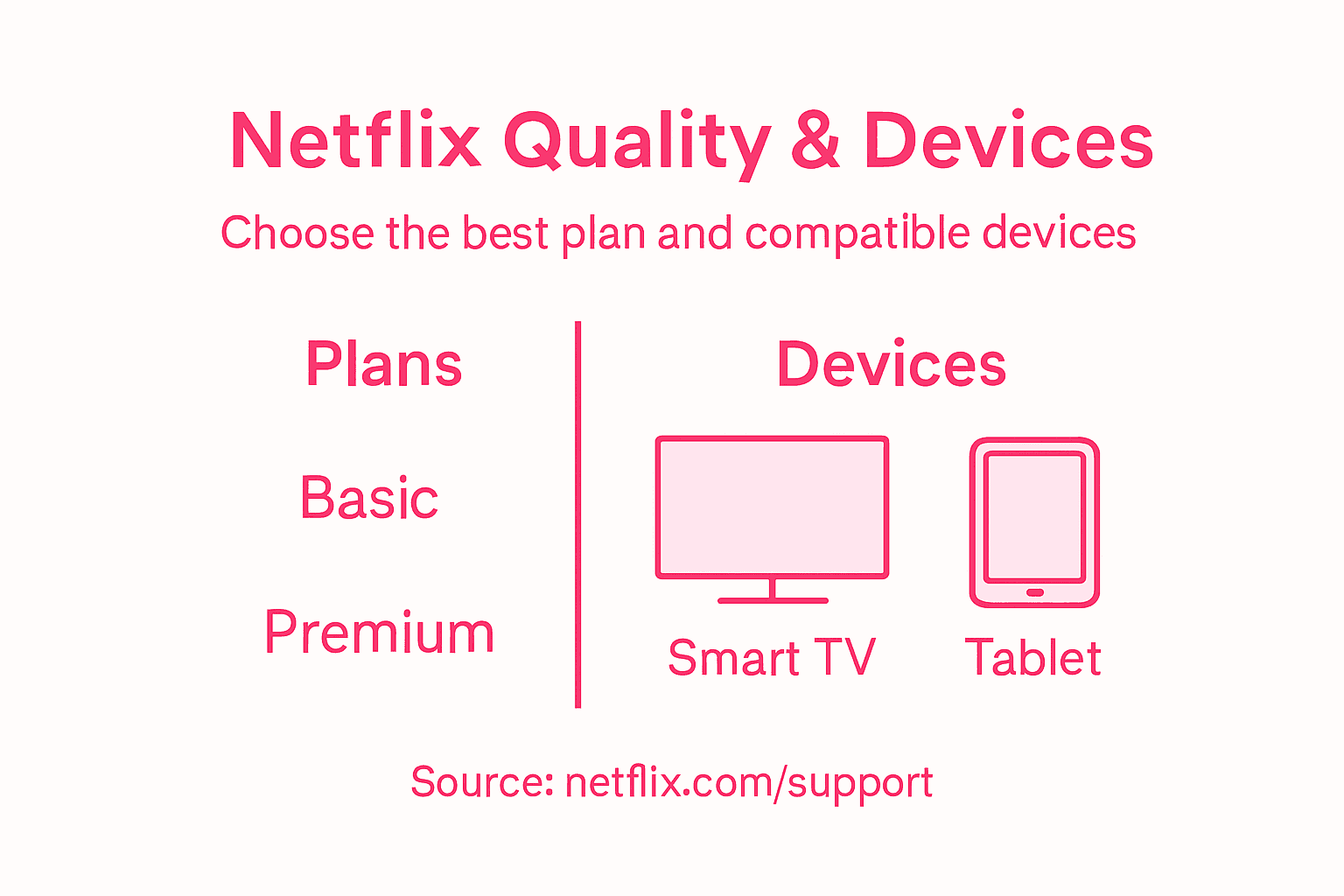
Here’s a quick guide to Netflix subscription plans and their streaming quality options:
| Plan Type | Max Video Quality | Number of Devices | Available Features |
|---|---|---|---|
| Basic | Standard Definition | 1 | Mobile download, no HD/4K |
| Standard | High Definition | 2 | HD streaming, downloads |
| Premium | 4K Ultra HD & HDR | 4 | Ultra HD, HDR, Dolby Atmos |
Next, verify that your device can actually handle the quality you’re trying to stream. Different devices have different capabilities. Your older laptop might only support HD streaming even if your Netflix plan includes 4K. Modern smart TVs, streaming devices like Roku or Apple TV, and current-generation gaming consoles typically support 4K. Your smartphone probably supports HD or higher, depending on its screen size and refresh rate.
Device and browser requirements vary significantly across platforms, so if you’re serious about getting the best quality, check Netflix’s official compatibility list to see what your specific device supports. Windows computers updated to Windows 10 or 11 with current browsers can stream Ultra HD. Macs vary depending on your operating system and browser, with Safari often providing better quality support than Chrome. Mobile devices need reasonably current operating systems to unlock higher-quality streaming.
Your internet speed plays a huge role in streaming quality. Netflix recommends at least 5 Mbps for HD and 15 Mbps or higher for 4K. If you’re dealing with buffering or sudden drops in quality, your connection may be the issue. You can test your speed using tools like Speedtest.net. If speeds are consistently lower than expected, it’s worth contacting your provider.
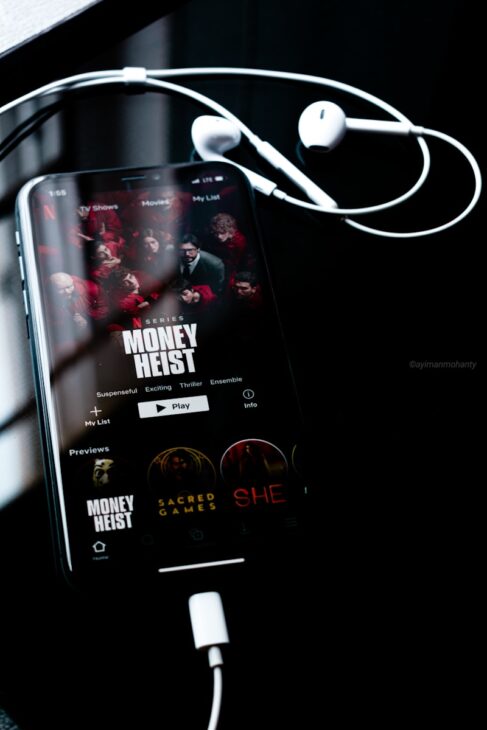
Simple fixes can also help. Moving your router closer to your device or switching from WiFi to a wired Ethernet connection can significantly improve stability. If your internet seems fine but problems persist, check Netflix’s device-specific troubleshooting tips. A quick restart of your router or device often resolves glitches.
You should also review Netflix’s playback settings in your account. You can choose between higher quality or lower data usage depending on your connection. If you’re on strong home WiFi, there’s no reason not to maximise quality.
Pro tip: Test Netflix on each device you use regularly. If one device consistently looks worse than the others, the issue is likely with that device, not your internet.
Elevate Your Netflix Experience with Lifestyle Inspiration from The Punk Rock Princess
Mastering Netflix setup and streaming quality is only the first step to creating a truly enjoyable entertainment routine. This article highlights how important it is to secure your account, personalise your profile, and build a curated watchlist that fits your mood and lifestyle. If you find yourself overwhelmed by endless scrolling or unsure about what to watch next, you are not alone. The key pain points are: staying organised, protecting your account, and discovering content that really resonates with your tastes without wasting time.
At The Punk Rock Princess, I understand the joy of combining savvy entertainment habits with fashion, beauty, and lifestyle inspiration. Our blog offers fresh ideas to make your nights in just as exciting as nights out, with styling tips and pop culture updates that complement your streaming marathons.
Whether you want comfort food recipes to savour while watching or the latest entertainment news and personal stories that spark your mood, we’ve got you covered. Dive into our entertainment section and explore curated content that matches your vibe perfectly.